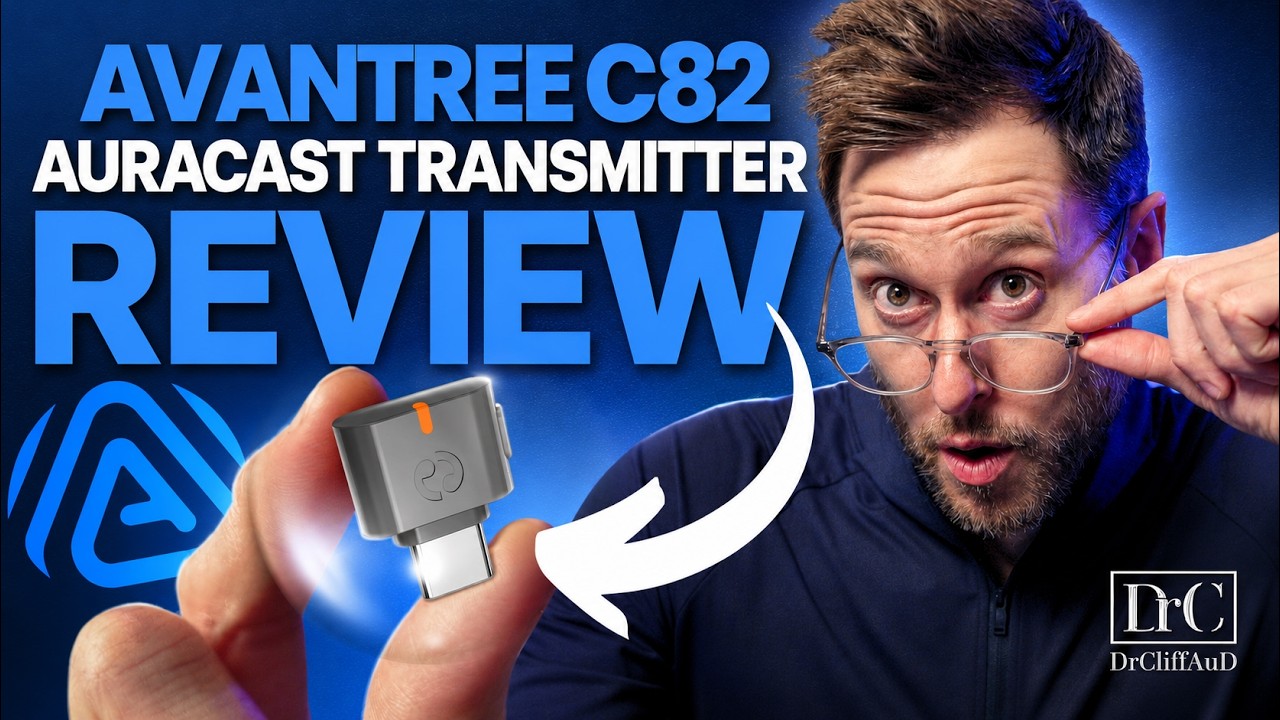
So you finally got yourself a pair of Auracast enabled Bluetooth hearing aids, only to realize that your phone, tablet and laptop don't use Auracast yet. I've been talking about Auracast since 2020, long before Auracast enabled hearing aids hit the market, and now that it's finally here, one of the biggest questions I get is how to actually use it with everyday electronics.
My answer is a small USB dongle called the Avantree C82 Aura. As of July 2026 when I filmed this, it costs only around $60, and it solves one of the biggest problems with Auracast today.
Why Your Devices Can't Use Auracast Yet
What surprises most people is that the hearing aid industry was instrumental in pushing forward the new form of Bluetooth, called LE Audio, that makes Auracast possible, and manufacturers were extremely quick to build it into hearing aids. Most laptops, desktops, tablets and smartphones don't use LE Audio yet. So even if your hearing aids have Auracast capabilities, you may have nothing to stream from.
I like to think of the C82 Aura as a translator. Your devices may have Bluetooth, but they're speaking a different language, such as Bluetooth Classic, the ASHA protocol or Bluetooth Low Energy. Those can't communicate with a device that only understands LE Audio Auracast. Plug the C82 into your computer, tablet or smartphone, and it converts the audio into an Auracast signal your hearing aids can understand. If the different Bluetooth types are confusing, my video on the four types of hearing aid Bluetooth breaks them down.
This is also a way to save money. Instead of buying new Auracast enabled devices that you might not even like, you can add this one small accessory to what you already own.
What the C82 Aura Works With
The C82 works with both Apple products and PCs and is essentially plug and play. It has a USB-C connector, so it plugs directly into any USB-C port. If your device only has a USB-A port, a USB-C to USB-A adapter gets you there, which means you can make it work with pretty much everything.
Because it broadcasts with Auracast, the signal can go to multiple hearing aids, earbuds or headphones that are Auracast enabled at the same time. That makes it easy to share audio from your device with other people.
Setting Up the C82 Aura
Setup only takes a few minutes:
- Scan the QR code on the box to get the firmware updater, and download it onto your laptop or desktop computer.
- Plug the C82 into your computer and click Check for Updates. If it isn't on the newest firmware, the update takes a few minutes.
- Open the Advanced tab and adjust these settings:
- Volume. Set the default volume level.
- Audio mode. I recommend leaving it on hearing aid compatibility, which keeps the sampling rate at 24,000 Hz and works with most hearing aids.
- Device name. Rename it, especially if you have more than one C82 for different devices.
- Encryption. Change it to encrypted and set a passcode. Otherwise, other people can listen to your Auracast broadcast without you knowing.
- Click Apply Settings.
Once it's set up, plug it into any device you like. On a laptop, the C82 shows up as a speaker option in your sound settings. Selecting it sends all of your computer's audio into an Auracast broadcast, and your computer speakers go quiet. It may become the default automatically, so if you don't want your audio going to the broadcast, you'll need to switch out of it.
Using the MFB Button and Lights
The small button on the side marked MFB controls a few functions:
- Press and hold for six seconds to switch the broadcast mode. A white light means hearing aid mode at a 24 kHz sampling rate. An orange light means 48 kHz, which is intended for other Auracast headphones and speakers.
- Triple click to factory reset the transmitter and clear its pairing and encryption history.
- A solid light means it's broadcasting audio.
Many hearing aid manufacturers downsample from 48,000 Hz to 24,000 Hz inside their smartphone apps, so you might be able to get away with leaving it on orange.
Streaming to Your Hearing Aids
With the C82 plugged into my computer, I opened the app for my Auracast enabled hearing aids. I used the My Starkey app. Under Stream Options, I tapped Auracast Broadcast, and my renamed C82 broadcast appeared. When I tapped it, the app asked for the password, which it saves after the first time, and then I tapped Join. The audio from the video playing on my computer went straight into my hearing aids.
From there you can shape the sound:
- Streaming volume. Adjust how loud the Auracast stream is.
- Hearing aid microphone volume. Raise it to stay aware of your surroundings, or turn it off to block out the room while the stream keeps playing.
- Equalizer. Under Adjust Sound, change the bass, mids and treble until it sounds the way you want, then save it.
Different hearing aid apps allow different things, so play around with yours. Your hearing care professional can also fully customize how Auracast streaming sounds in their professional programming software, and a really good provider should be doing this for you regardless. It's part of following audiologic best practices. When you're finished, tap Stop and everything goes back to the way it was before you started streaming.
The C82 also works with other Auracast enabled consumer electronics. I streamed from it to my Samsung Galaxy Buds Pro 3 as well, so people without hearing loss who have Auracast earbuds can listen in too.
Limitations to Know
The C82 Aura is a transmitter only. It doesn't do two-way audio, so you can't use it for phone calls, and it won't pick up your voice on Zoom calls. For that, you'll need your computer's built-in microphone or a separate microphone.
It also needs a USB port, so it isn't the answer on an airplane, for your TV or at a public venue. I cover those situations in my other Auracast videos, including my review of the Avantree Voyager HA for in-flight entertainment and my look at how Auracast will change your hearing aids in public places.
Is the C82 Aura Worth It
Until laptops, desktops, tablets and smartphones include Auracast natively, a dongle like the Avantree C82 Aura is going to be one of the best ways to make your electronics compatible with your Auracast enabled hearing aids. It's extremely affordable, easy to set up and works across multiple devices, so you can start taking advantage of the Auracast feature inside your hearing aids.
Get the Most From Auracast Streaming
Streamed audio sounds best when your hearing aids, including their streaming settings, are programmed correctly for your hearing loss. The HearingUp Provider Network is made up of vetted providers who follow comprehensive audiologic best practices and can help you get the most from Auracast and every other feature in your hearing aids.