EN
Dr. Cliff Olson, Doctor of Audiology and founder of Applied Hearing Solutions, dives deep into the Oticon Companion App, the most underrated hearing aid app in the market!

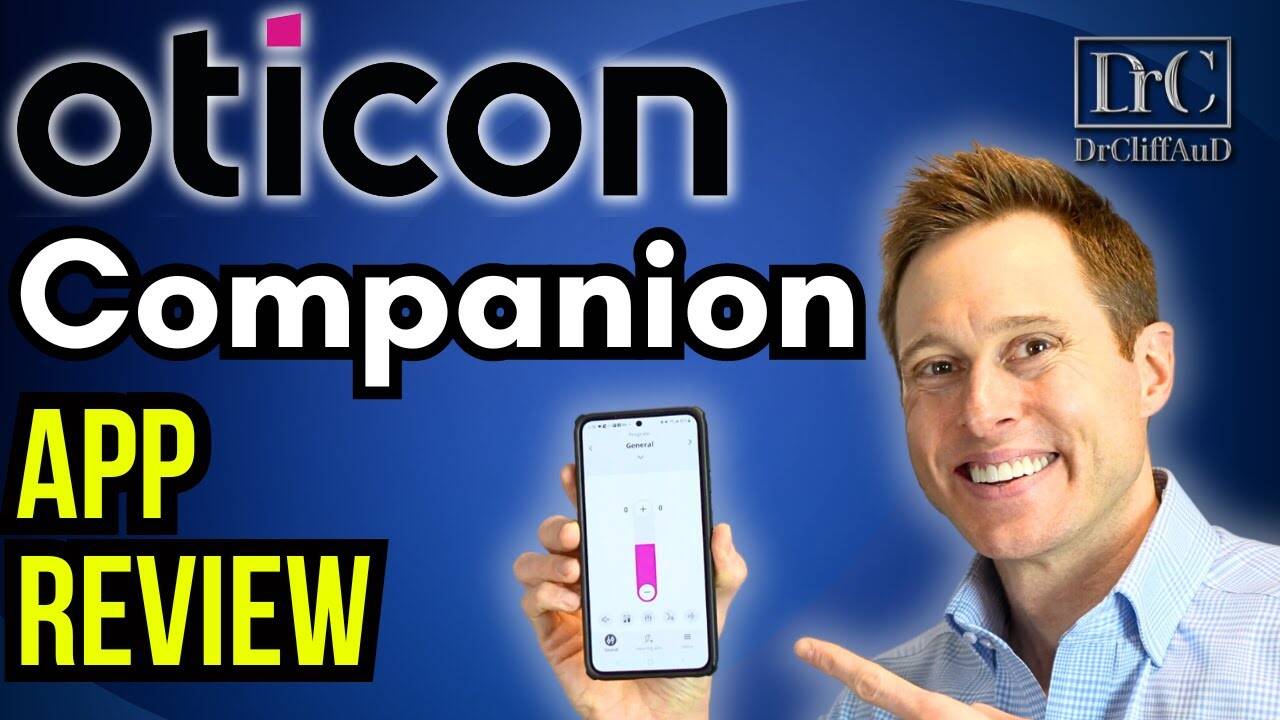
The landscape of hearing aid technology is evolving continuously, and with it, the tools we use to enhance our hearing experiences have also advanced. Our commitment at Applied Hearing Solutions has always been to provide detailed, practical guidance for users to navigate these changes effectively. Today, we're focusing on the latest innovations in smartphone applications for hearing aid users, specifically dissecting the functionality and benefits of the new Oticon Companion app. This application aims to improve user interaction with their hearing devices, streamlining the process of customization and control.
With this new app release, we understand there can be mixed emotions – excitement for some and apprehension for others who are less comfortable with change. Our thorough examination is designed to address the concerns you might have about using this app, giving you the insights needed to benefit from the new features. We'll explore the differences between device compatibility, the setup process for different smartphones, and how these factors impact your user experience. Addressing the initial feedback from application stores and drawing on our expertise, we'll push past the ratings to offer you an analytical perspective on the Oticon Companion app's performance.
In 2016, we at Oticon introduced the Oticon On app alongside the new Oticon OPN hearing aids. This initial foray into smartphone hearing aid applications aimed to enhance user experience through easy accessibility and control over their hearing aid settings.
Approximately seven years after the release of the Oticon On app, we decided to consolidate the functionalities of the Oticon On app and the OD Connect remote care app into a single, more comprehensive tool: the Oticon Companion app. Though change can often be met with resistance, this move was geared towards refining and simplifying the hearing aid management process for our users.
The Oticon On app garnered mixed ratings, with a 2.9-star rating in the App Store and a 3.1-star rating on Google Play. Despite our efforts to improve upon the existing platform, the Oticon Companion app has debuted with lower ratings of 1.9 stars in the App Store and 2.2 stars on Google Play. However, after extensive comparative research and hands-on experience, we believe the functionality and user experience of the Oticon Companion app is superior to what these early ratings suggest.
Our dedication to enhancement led us to roll out version 1.2.2 of the Oticon Companion app, which incorporates numerous improvements. Among these, we fine-tuned the connection process and added a new sound equalizer feature. The equalizer allows for adjustments across low, mid, and high frequencies with a range of +/- 6 decibels to ensure users can tailor their listening experience to their preferences.
The hands-on approach to app development and our commitment to iterative improvement remains at the core of our strategy for providing users with a seamless and intuitive hearing aid management experience.
We want to clarify the compatibility differences between iOS and Android devices with our hearing aids. Our hearing aids are classified as 'Made for iPhone (MFi),' which facilitates a more seamless experience when pairing with Apple iPhone or iPad devices. These devices use Bluetooth Low Energy, which typically provides a smoother connection. However, we've ensured that you can also pair your hearing aids with Android devices, although the connection relies on the ASHA Bluetooth protocol, which we understand can be less stable.
Pairing Your Hearing Aids with an Apple Device:
Once paired, you can fine-tune how your hearing aids interact with your device, such as:
Connecting Your Hearing Aids to an Android Device:
Unlike the process for Apple devices, there is no need to pair your hearing aids with your Android phone before using the companion app. Please follow these steps:
Remember to reboot your hearing aids during the setup as prompted by the app. Once paired, the app will lead you to the 'Sound' tab, serving as your remote control for the hearing aids. Through this platform, you can manage programs, adjust the volume, and customize sound settings to your preference.
We provide users with a dynamic remote control interface directly from the companion app. At the top of the app, you can seamlessly switch between your personal hearing aids' programs and accessories. Utilizing a dropdown menu, it's easy to access and select your preferred settings that we have customized for you. For those with a smaller set of program options, toggling with side arrows is an efficient alternative. Although there's no auditory confirmation from the hearing aids when changing programs, the visual cues on the app aid in identifying the selected program.
Our app simplifies the process of managing different programs and accessories. Especially when using accessory programs like the TV adapter or EduMic, you have individual control over the streaming volume and the surrounding environment audio levels. While there is room for improvement in transitions between accessories, the ability to personalize your hearing experience is a priority that we constantly work to enhance.
Starting from the default volume level, you have the flexibility to adjust levels through increments above or below zero. The range of volume control is tailored by us, your hearing care professionals, allowing adjustments by dragging a bar or tapping plus and minus icons. Conveniently mute the microphones to block out unwanted noise, while still streaming audio from your device without interruption.
With the latest update, we've introduced a sound equalizer feature, giving you the ability to fine-tune low, mid, and high-frequency sounds with a range of ±6 decibels. This three-band equalizer reflects our commitment to providing a comprehensive and customizable hearing solution, although the extent to which adjustments can be perceived depends on the earmold design we've selected for you.
We upgraded from the Oticon on app to the Oticon companion app, which we expected to improve upon past user ratings of 2.9 to 3.1 stars. Surprisingly, the Oticon companion app's initial ratings fell to 1.9 stars on the App Store and 2.2 stars on Google Play. Despite these ratings, our extensive comparisons with other major hearing aid apps confirm that the companion app offers significant advantages that aren't fully recognized.
Version Improvements:
Experience with Apple Devices:
Experience with Android Devices:
Permission Requirements:
App Usability:
Remote Control Functionality: We can navigate through the app with the following controls:
Feedback on Glitches:
As creators of the Oticon companion app, we strive to integrate user feedback and technical advancements to deliver a seamless hearing aid experience. The app aims to provide intuitive controls and customizable features fitting diverse user preferences and lifestyles.
As we've thoroughly tested the Oticon companion app, we observe that its initial reception may not fully reflect its capabilities. With the app now at version 1.2.2, further enhancements have been integrated. While similar in aesthetics to its predecessor, the Oticon on app, the Oticon companion app has shed certain features like IFTTT due to lack of use. Differences do appear between Android and Apple usage; particularly, the pairing process varies, showcasing a smoother experience for Apple users.
Our assessment has identified the app's robust functionality. Particularly, the ability to switch between programmed settings and accessories is streamlined via a dropdown menu, catering to user preferences for quick access or side arrows for sequential selection.
User Experience Enhancements:
As for Android users, despite some noted hitches with the ASHA protocol, the pairing is conducted within the app, providing a direct and user-friendly experience. It is also key to highlight that for Apple devices, integrated MFi capabilities offer intricate control over how the hearing aids interact with various system audio elements.
To optimize user experience:
Program and Accessory Navigation:
It's evident that the app's perceived shortcomings, as reflected in online ratings, may not adequately represent the comprehensive features it offers and the tangible improvements made since its initial release. We anticipate ongoing updates will further enhance user satisfaction and performance.
Hi guys. Cliff Olson, Doctor of Audiology and founder of Applied Hearing Solutions in Phoenix, Arizona, and in this video I'm doing a detailed review of the new Oticon Companion App, which might be the most underrated hearing aid app out there, coming up! Hearing aid manufacturer Oticon came out with their first smartphone app back in 2016 called the Oticon ON App when they released their Oticon OPN hearing aids. Approximately seven years later, Oticon replaced their Oticon ON app and their Oticon Remote Care app with the new Oticon Companion app. Now, I promise, I'm not gonna say Oticon a hundred more times in this video, although it might be close. Of course, having a new app might have some of you excited and some of you not so excited, especially those of you out there who don't like change. The old Oticon ON app had between a 2.9 star rating in the app store and a 3.1 star rating on Google Play, so the hope would be that the new Oticon Companion app would fix a lot of the issues with the on app that people didn't like. Unfortunately, the new Companion app already has a lower rating of 1.9 stars in the App Store and 2.2 stars on Google Play. However, I have worked extensively with all of the other major hearing aid apps out there, and the Oticon Companion app is significantly better than people are giving it credit for. On top of that, Oticon has already made some updates to this app. They are now on version 1.2.2 where they've made some nice additional improvements and I think it's ready for a full review. But I am interested, if you wanna see more videos just like this one, hit that like button to let me know that you want me to make more of these video reviews. And if you are not yet subscribed to the channel with notifications turned on, go ahead and do that as well, so you actually get notified every single time I publish a new review video. Okay, so I have to say that the new Oticon Companion app is very similar to the old Oticon ON app when it comes to the look and feel of the app. So if you're someone who does not like change, it's not gonna take you a whole lot of time to get used to the new version. Oticon did get rid of If This Then That, which is IFTTT because nobody used it in the old app anyway. I should mention that the app is a little bit different depending on whether or not you use an Android device or an Apple device. Generally speaking, Oticon hearing aids are made for iPhone hearing aids, which means they work a little bit better with an Apple iPhone or iPad that uses Bluetooth Low Energy for Apple, but you can still use them with an Android device. It just uses the ASHA Bluetooth protocol, and I'm not a huge fan of the ASHA protocol because it's really glitchy. As far as pairing goes, if you have an Apple device, you will need to pair your Oticon hearing aids directly with your phone before going into the Companion app. To do this, you'll go to settings, scroll down to Accessibility, scroll down to Hearing Devices. Allow your Apple phone or tablet to search for MFi hearing devices, and when both your right and left hearing aids appear, you will tap on them and agree to the pairing of both of them. One of the nice things about using an Apple device with a made for iPhone hearing aid like Oticon is that you can control how the phone interacts with your hearing aids, meaning that you can control if you stream to one or both of your ears. You can also select whether you want ringtones to play in your hearing aids and other system sounds like notifications, which may be annoying to you, in addition to whether or not call or media audio routing always goes to your hearing aids, never goes to your hearing aids, or is automatically determined by your Apple device. Once you have this pairing process completed inside of your Apple device, now it's time to go into the Companion app. Of course, there are a few permissions that you will have to allow before you get into the pairing section of the app setup. Once you hit pair, now the app will download the settings your hearing care professional set up in your devices and connect your hearing aids to the app. I do recommend that you allow geolocation so you can use the Find My Hearing aid feature inside of the app as well. This will require that you set your location settings to always and toggle on precise location. Once this is completed, you'll be inside of the app ready to go. To set up and connect your hearing aids to the Companion app when using an Android phone like this one, you do not have to pair your hearing aids to the phone. First, you download the Companion app and you just follow all of the instructions inside of the app and that is what will connect your hearing aids with the app in your phone. The app will prompt you to reboot your hearing aids; once paired successfully, the app will take you directly to the Sound tab on the bottom of the screen on the left hand side. This is your remote control screen. Let's talk about all the things that you can do in this part of the app. At the top you have your programs and accessories. You can change between these different programs and accessories in two different ways. The first way is to click the down arrow to open up a dropdown menu that shows all of the options your hearing care professional has set up inside of your devices. Then you can just tap on the program you want and the hearing aids will go into that particular program or activate that accessory. This is the fastest way to select a program if you have a lot of different programs to pick from. If you happen to only have two programs, for instance, a General program and a Speech in Noise program, you can use the side arrows to toggle back and forth between them. If you have a lot of different programs, you can still use these side arrows, but you'll have to keep clicking them until you get to the program that you want. Also, your hearing aids do not verbally tell you which program that you were in, so having the app to show you can be really helpful. If you select an accessory program such as the TV Adapter and EduMic program, you can separately adjust the streaming volume for your accessory and the surrounding environment sounds coming through your hearing aid microphones. I will say that this dual accessory program is a little bit glitchy. It's not very smooth going from one accessory to the other, and I just feel like a lot of the negativity of the bad reviews of this particular app is because there's such a long delay between when you activate one accessory or one program versus another. Alright, back to the app. Next, you can control your volume. You'll always be at the default starting point of zero when you turn your hearing aids on. In most cases, you'll have four steps that you can go higher than zero and four to eight steps that you can go below zero. However, this range is controlled by your hearing care professional and their Oticon programming software. To adjust the volume, you can simply drag the pink bar with your finger up and down or tap on the plus or minus signs just below the volume adjustment. On the left hand side of the screen, you have a mute button that will mute the microphones of your hearing aids, but you will not mute any streaming of audio that you are doing from your phone or tablet. This is great if you're in a noisy environment and you do not want to hear all that noise around you, but you still want to hear the sound coming from your smart device. To the right of the mute button, you have the option to split the volume control into separate left and right volume adjustments, if for some reason you feel like your hearing aids sound out of balance or if you're trying to increase or decrease sounds on one side of your head. To the right of that, you have the new sound equalizer that was first made available in app version 1.2.2. This allows you to adjust a three band equalizer for sounds in your environment. It allows a plus six and minus six decibel range for low, mid, and high frequency sounds. Keep in mind that your ability to perceive these adjustments depends on the type of dome or custom ear mold that your hearing care professional has set you up with. The really nice thing about this equalizer is that you can change it for different programs and it will keep those adjustments until you change them again or click the restore default button. To the right of the sound equalizer, you have this streaming equalizer button. This allows you to also adjust a three band equalizer for streaming of audio coming from your smart device. For this, they give you a range of plus six decibels and minus 12 decibels for low, mid, and high frequencies. Just keep in mind that for streaming audio, it also heavily depends on the type of domes or custom ear molds that you are using to trap the sound inside of your ears. The app will also remember these streaming settings until you change them or restore the defaults. On Apple devices, to the right of the streaming equalizer button in the general program only, you'll have a triple dot menu that will open up all of these buttons and an additional Speech Booster and remote microphone button, which is also known as Live Listen, which is not available on Android devices. The Speech Booster will allow you to reduce the sounds that are coming from your sides and coming from behind you and focus your hearing aid microphones on the speech coming from in front of you. If activated, this Speech Booster button will turn pink. The remote microphone button allows you to use the Live Listen feature to turn your Apple iPhone or iPad into a remote microphone and stream the audio directly into your hearing aids from your phone or or tablet. When this feature is activated, you will see the remote microphone and streaming equalizer buttons turn pink, letting you know that they are active. Essentially, this remote microphone Live Listen feature turns your iPhone into a spy device, and Dr. Rachael Cook actually put up a whole video talking about that particular feature that you may wanna check out if it interests you. Of course, I will have that video linked in the description. Okay, moving on to the hearing aids tab in the bottom center of the app, this part of the app will tell you the battery life of your hearing aids in percentage and even give you an estimate for how many hours of battery life you have remaining. It also gives you the Find My Hearing Aids feature that will allow you to see the last known location of your hearing aids in case you misplace them or lose them. This feature is only possible if you have location services activated on your smart device. As you can see, both of my Oticon hearing aids are together and inside of my ears. Below the Find My Hearing aid feature, you have your hearing aid update section to let you know if you need an update, and so you can see what version of hearing aid firmware you're on. This is not the version of the app that you're using. This is the firmware in the hearing aids. You also have your hearing aid settings that will let you select your battery notification settings so you get a notification when your hearing aid battery life reaches a certain point. You have your hearing aid details, which tell you the model of your devices, the firmware version, and the serial numbers of your Oticon hearing aids. And you can toggle on or off your remember volume settings if you want your volume adjustments to apply to all of your different programs automatically or have separate volume adjustments for each program. The final tab on the bottom right hand side of the app is the More tab. The new version of the Companion app brought back the Hearing Fitness Tracker. That will allow you to set your daily wear time goal, which should ideally be eight hours or more per day, and track it over time. You also have the ability to activate a remote care session with your hearing care professional, which no longer requires a separate Oticon Remote Care app, which has been discontinued. This feature allows your hearing care professional to have a live remote session with you and make adjustments to the programming of your hearing aids in real time. Just remember, you can see them and they can see you, so make sure that you at least put a shirt on. You will need to create an Oticon account to be able to use this remote care feature. Below that, you have a help and support feature, which gives you troubleshooting tips, the ability to email customer support at AppSupportUS@oticon.com, and instructions for use, which is the Companion app user manual. Below the help and support section you have the My Profile section. This allows you to toggle on and off the anonymous data usage. If you're having issues with the app, I would highly recommend you turn this anonymous feature on so Oticon can see those issues and make improvements to the app over time. You can also toggle on or off hearing aid updates if you want to receive hearing aid updates directly through the app, which is another nice addition that Oticon has made. If you want to get important news from Oticon, you can turn on that feature or off if you don't wanna get those news updates. You can also set up an Oticon account in this section or sign into your account if you already have one set up using the previous generation Oticon ON app. You also have the important news section and about the app section, which will tell you what version of the app you're currently using. Alright, separate from the app, I do wanna mention a couple of other different things that you get with an iPhone that you do not get with an Android phone, and that is hands-free calling, but you have to allow this on your Apple device. To do this, you just swipe down from the top right hand corner of your screen, click on the ear icon, scroll down to the mic input, and make sure that this is turned on. If you want to stream phone calls into your hearing aids, but still want to use the microphone on your iPhone to pick up your voice, make sure that this feature is turned off. This feature is available with the iPhone 11 or later, iPad Pro 12.9 inch fifth generation and fourth generation, iPad Pro 11 inch third generation and second generation, iPad Air fourth Generation, and iPad Mini sixth generation with software updates to iOS 15.2 and iPad iOS 15.2 or later. Alright, back to the app here for a second because this is a really nice additional feature that you get with an Oticon hearing aid, and that is the ability to control your hearing aids with an Apple Watch. To use the Oticon Companion app on the watch, you will want to open your Watch app on your phone or your tablet and make sure that it is set to show the app on your Apple Watch. After you do this, you will see the Companion app as an available app to use on your watch. When you open the app, it will typically come up to the remote control screen, which is one of three different screens available on the remote control screen. To change between programs and accessories, you touch the P number button on the left of the volume bar. This will bring up the different program options that you have available inside of your hearing aids. Then you just scroll to and tap on the program that you want. You'll see what program you are in by looking at the top of the watch face or by looking at the P number button. To change the volume using the Apple Watch, you can either tap on the volume up or on the volume down buttons, or you can spin the crown on the side of the watch. If you want to mute your hearing aids, you can simply tap the mute button on the right hand side of the volume bar. Now, if you want to access the other screens on the Apple Watch, you can simply swipe to the right and you'll see your hearing aid battery life and percentages, and if you swipe your screen all the way over to the left, you'll have a few additional options. One of these options will include activating Speech Booster if you're in the general program. However, the other option is for the remote microphone. However, you cannot activate your remote microphone for Live Listen mode. Really, the watch only lets you turn off the Live Listen mode once it has already been activated. Of course, every once in a while, even on the Apple watch the app will freeze a bit, which is incredibly annoying, and like I said, one of the main reasons why people are giving this a lower star rating in the App Store and on Google Play. In my opinion, I will say that the Apple Watch only communicates with your hearing aids through your iPad or your iPhone. You cannot just leave the house, even if you have the watch that has cell service, you cannot leave the house without your phone and still be able to do all of the same controls. The watch will not connect up directly with your hearing aids. Like I said earlier, I really am surprised that the Oticon Companion app has such low ratings inside of the App Store. Like I've speculated. I think that this is primarily due to the delays that happen between connecting the app up with the hearing aids and actually making adjustments. That being said, this is a problem for most hearing aid apps that are currently available on the market. You've gotta remember, these are hearing aid manufacturers. They spend almost all of their time doing research and development on the hearing aid technology. The apps are really just kind of an afterthought. What I do know though, is that after about 10 years of having hearing aid apps available on the market from certain manufacturers, they are spending a lot more time and money trying to make these apps work a lot better. The problem is, is that you're dealing with a third party piece of technology and you want that technology to integrate seamlessly with your hearing aids, which is virtually impossible in my opinion. I think that Oticon did a really nice job with their Companion app and the updates that they've made to it since they released it. Despite not having the best ratings inside of the App Store and the Google Play Store, I just think that certain people have really high expectations that will probably never be met, but if you're looking for a great pair of hearing aids and an app that allows you to control your devices, you may wanna give Oticon and their Companion App a try.

Dr. Cliff's detailed review of the Oticon Zeal, examining its innovative in-the-ear design, performance capabilities, and real-world testing results.
Read More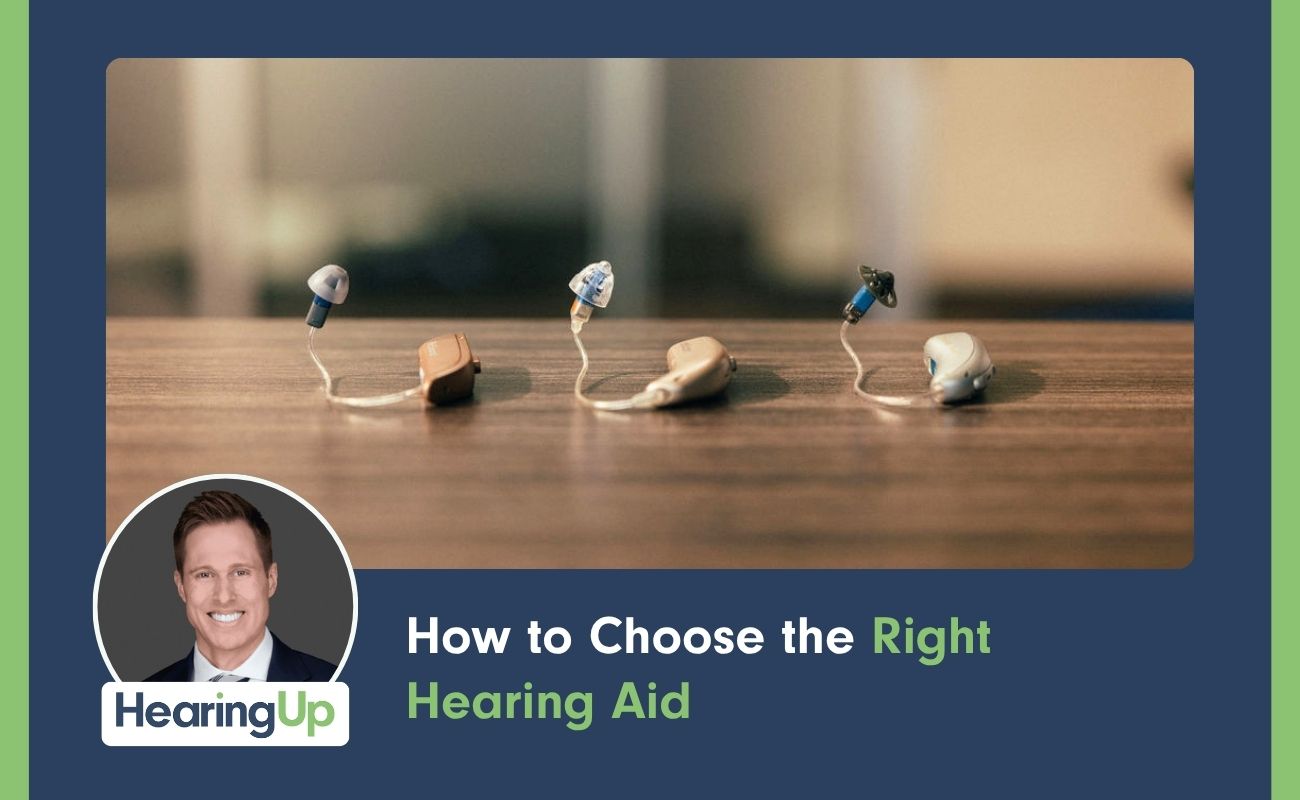
Dr. Cliff breaks down the four key factors audiologists use to match patients with the right hearing aid for their unique needs and lifestyle.
Read More
Dr. Cliff's comprehensive guide to the best hearing aids of 2026, covering top performers across all styles and technology levels.
Read More
Dr. Cliff reviews the top behind-the-ear hearing aids for 2026, examining power options and features for those with severe to profound hearing loss.
Read More
Dr. Cliff identifies the top hearing aids for tinnitus relief in 2026, examining features that provide effective suppression and management options.
Read More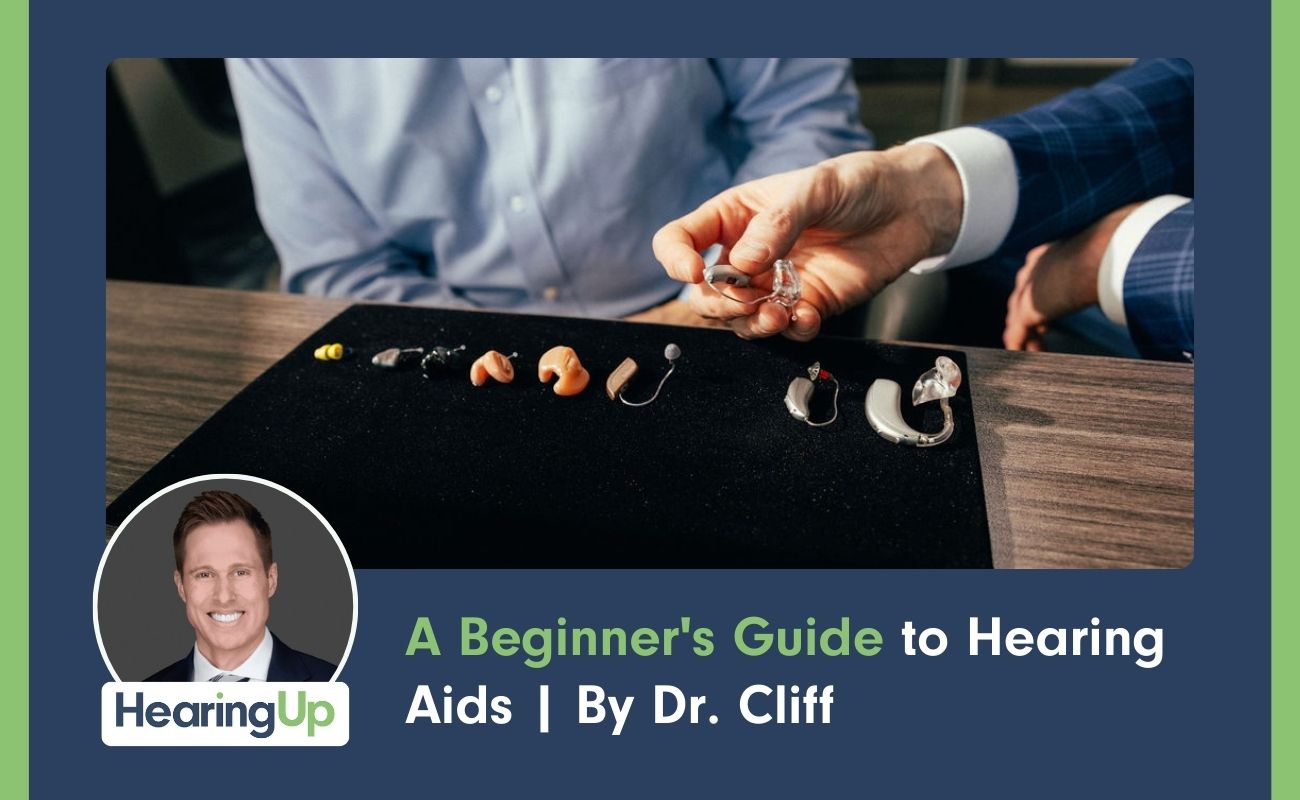
Hearing aid success requires 90-min evaluations, Real Ear Measurement programming, appropriate tech selection, 30-day adaptation and ongoing professional follow-up.
Read More
Name-brand hearing aids, fit by a local hearing healthcare provider who follows Best Practices.
Best Practices ChecklistHearing Aid Buyer's Guide